
- Item Name : Natha – Personal Portfolio HTML Template
- Created: 26 April 2026
- Item Version : v 1.0.0
- Author : Alif Theme
- Support: themealif@gmial.com

Introduction
Natha – Personal Portfolio HTML Template Documentation
We would like to thank you for choosing Natha – Personal Portfolio HTML Template.
Getting started
Natha is a clean and modern HTML5 , Bootstrap Construction Template. We have built Natha to be as compatible as possible so that you can use it for any of your needs. It’s suitable for any Construction website.
Template Features
- HTML5 & CSS3
- Bootstrap v5.3.x
- Font Awesome Pro
- Built With SASS
- jQuery
- 3 Awesome Homepage
- Responsive Design
- Pixel Perfect Design
- Creative Animations
- Clean Code & Unique Design
- Easy to Customize
- Isotop Filtering
- SVG Icon
- Ajax Contact Form
What's Included
After purchasing Natha HTML template on themeforest.net with your Envato account, go to your Download page. You can choose to download Natha HTML template package which contains the following files:
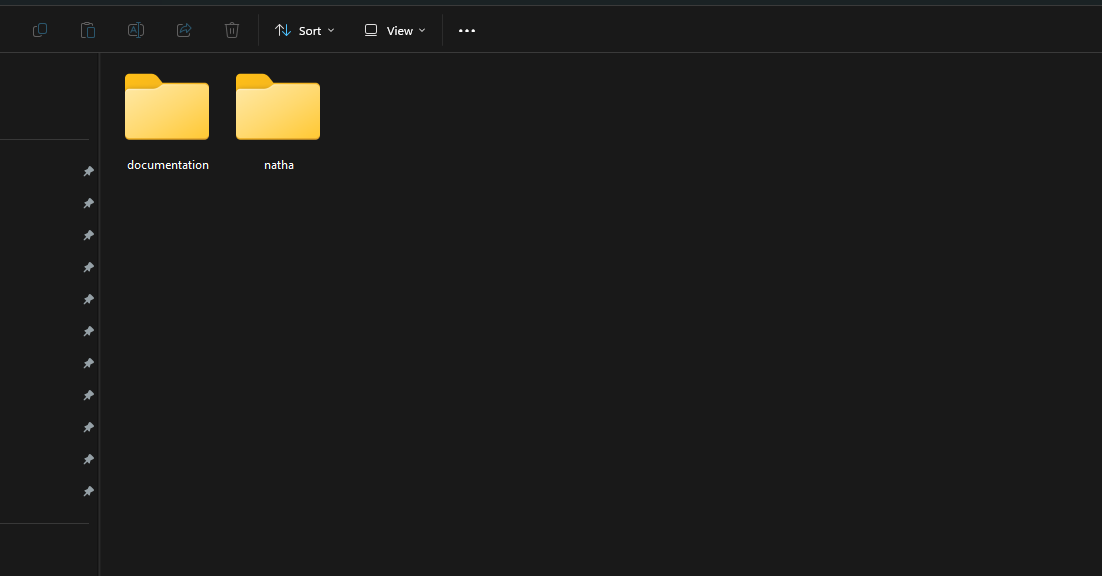
The contents of the template package downloaded from ThemeForest
- Natha - An HTML Template file. this file you can edit and use for your Construction website and relevant sites.
- Documentation - This folder contains what you are reading now :)
Template Structures
Articles
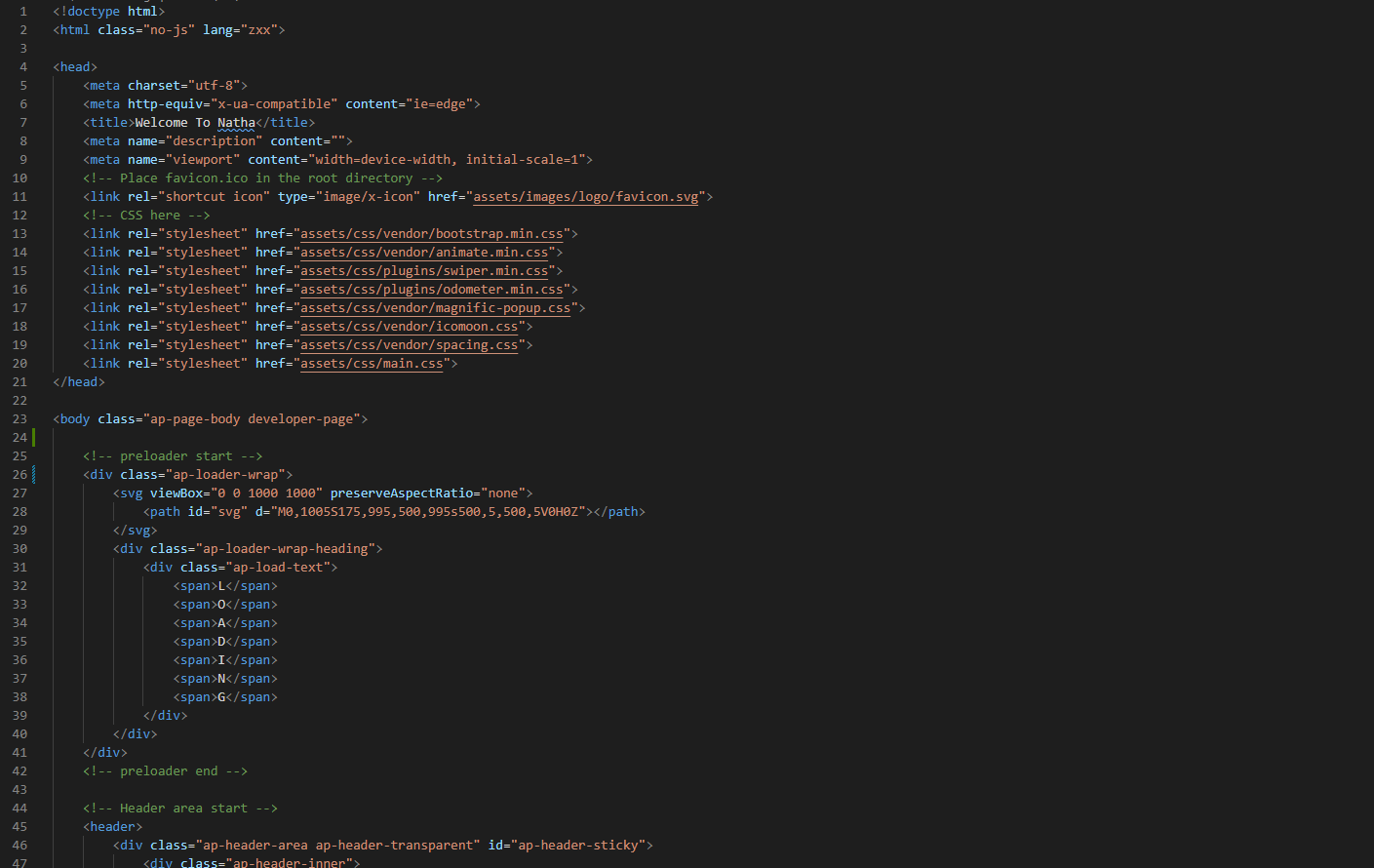
HTML Structure
This template is a fixed layout with four columns. The main contents are inside the 'body' tag divided into differt section (i.e. header, banner, services,... footer etc.). The general template structure is the same throughout the template. Here is the general structure.
SCSS Files and Structure
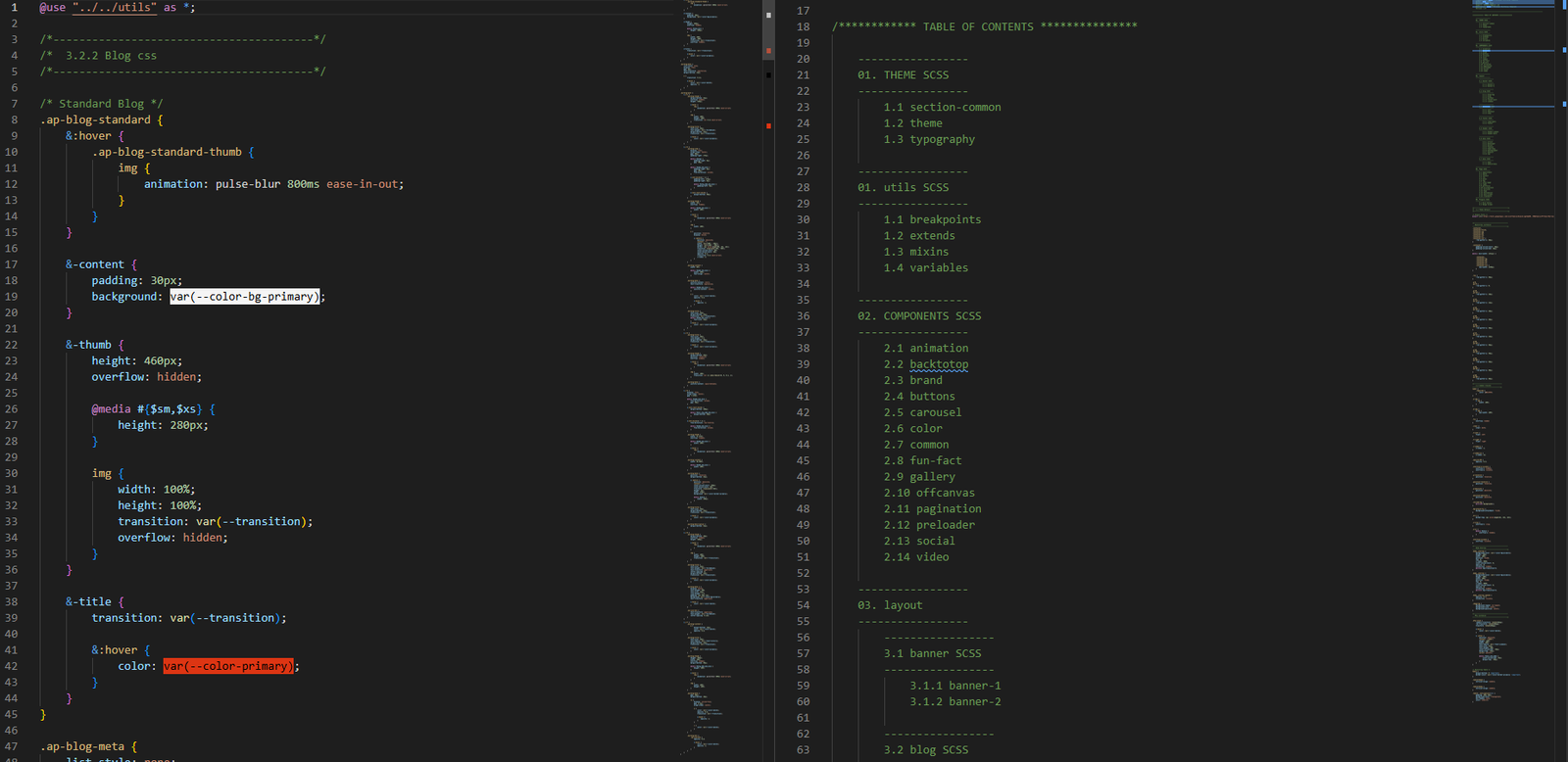
This template is built with SCSS for easy customization and better code organization.
All style files are separated into reusable partials, and the main stylesheet compiles
everything into a single main.css file.
CSS Files and Structure
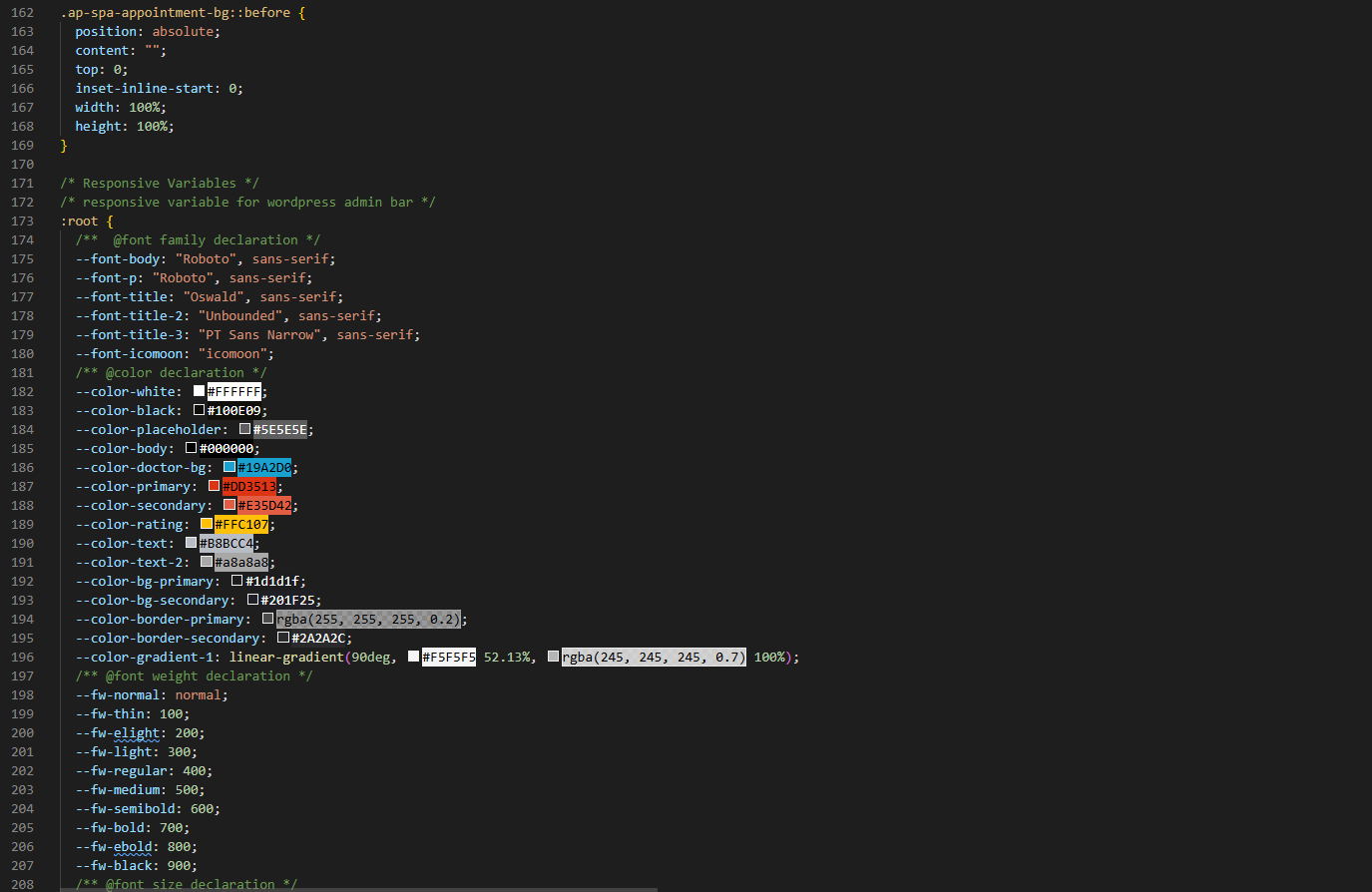
We are using one customed CSS files (main.css) and several vendor css files. CSS file structure is as follows:
JavaScript Files
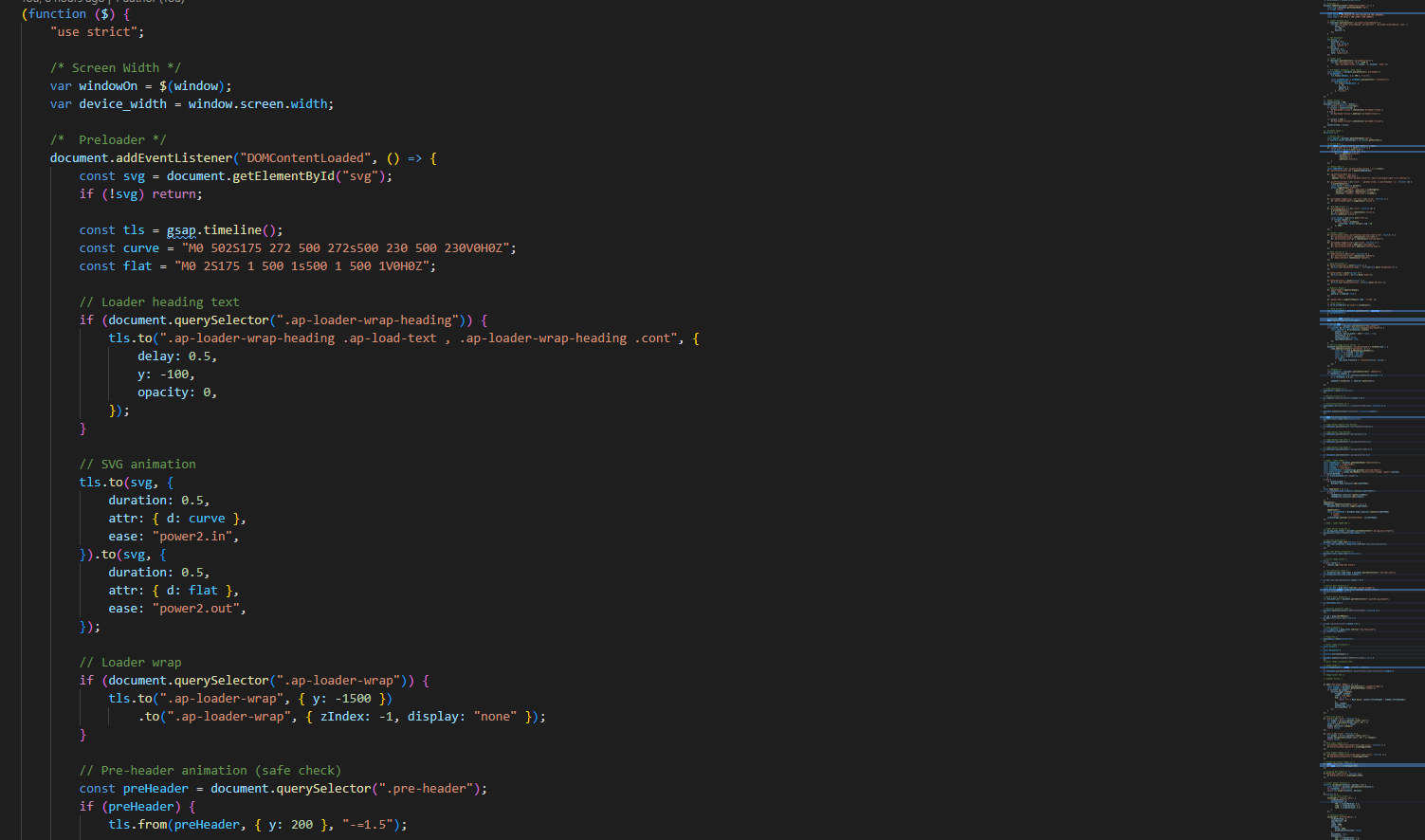
There is a custom .js file named main.js and are several vendor js files as plugins. We are using jQuery(a javascript library) instead of vanilla javascript. Our file structure is a follows:
Change Contents
Changing Images
To change any images of the website
- Carefully collect the source name of the image (i.e. hero.jpg)
- Open the file called images.
- Find the particular image file.
- Replace the file with your image.
- Make sure that the file name does not change.The file name should be the same.
Example: Suppose you want to change the following image file:
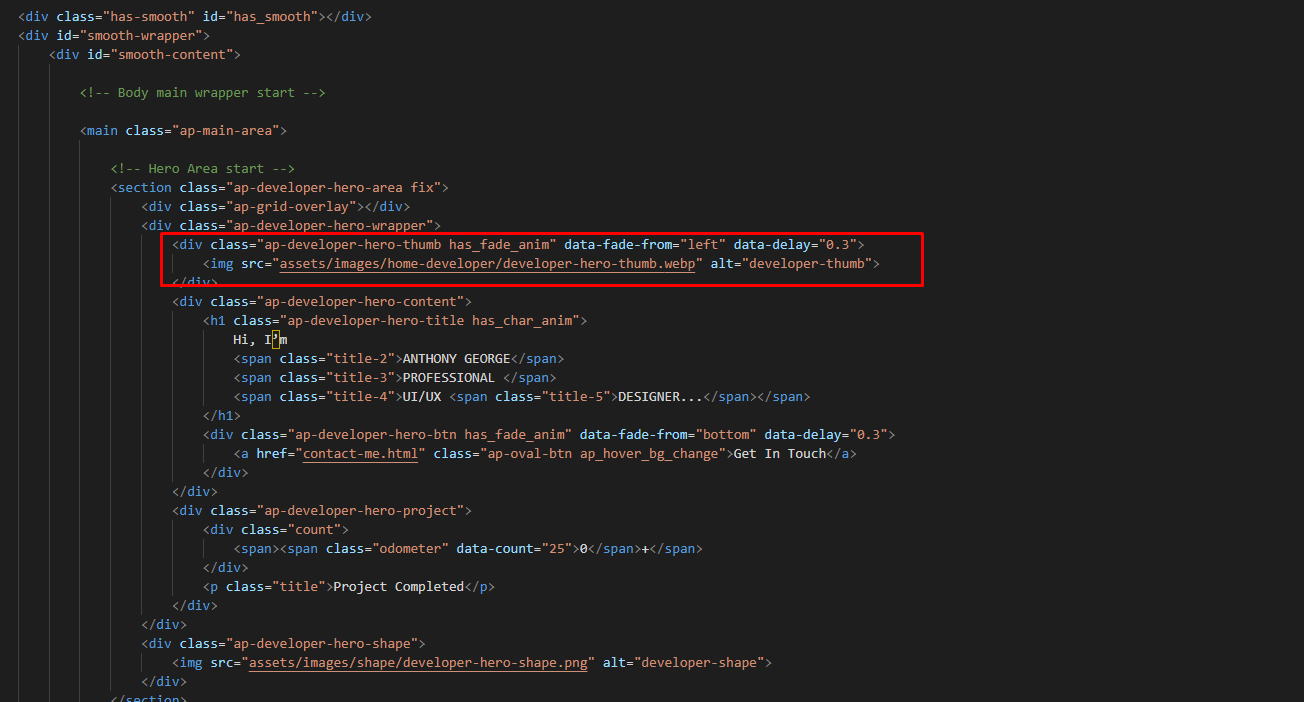
You have to do the following to change this image with your own image:
- Open the file called images.
- Find the particular image file called team-1.jpg
- Replace the file with your image
- Make sure that the file name does not change.
Changing Brand Logo
To change any images of the website
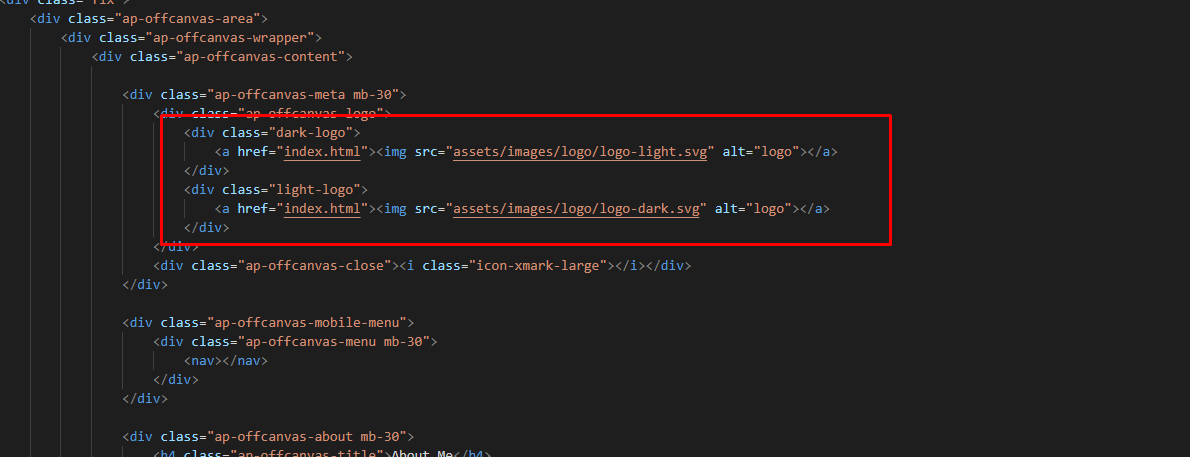
- Carefully collect the source name of the image (i.e. logo.svg)
- Open the file called images.
- Find the particular image file.
- Replace the file with your image.
- Make sure that the file name does not change.The file name should be the same.
Example: Suppose you want to change the following image file for change your logo:
Changing Colors
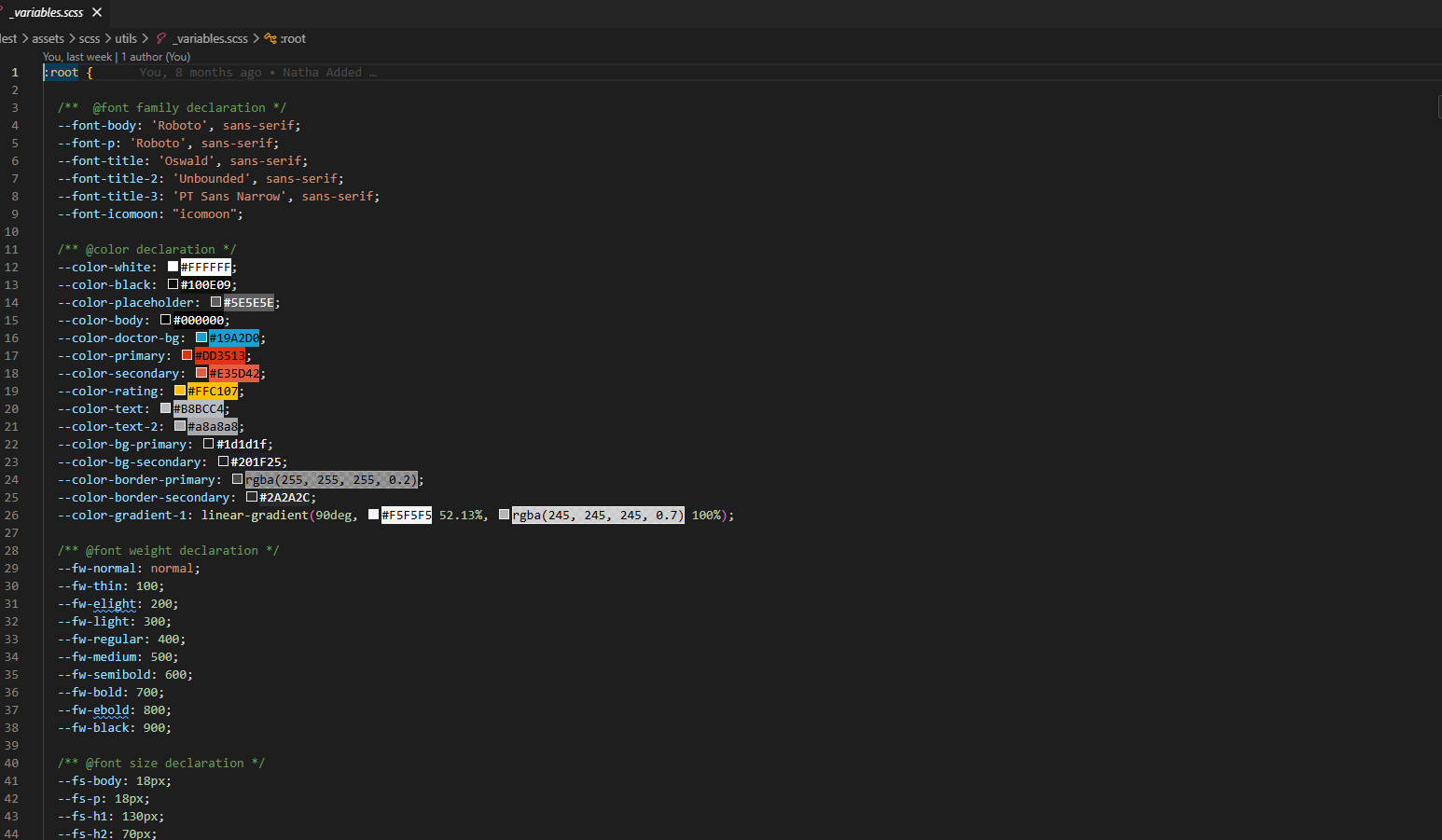
We have used scss for this project to write css. If you are familiar with scss you should customize only the .scss files. Please make sure you compile the main.scss file after you have made changes in any of the .scss files.
Changing default template colors
- Open the _variables.scss file from assets > scss > utils folder with a text-editor.
- Change the right-side values of the variables to change any default colors of your site.
- Save your file.
Sources and Credits
Change Log
v1.0.0 - 26 May 2026
- Initial released